This page is a must read for beginner FEF developers as it aims to give a fundamental overview of the customization and flexibility that a FEF developer can use to build a useful application. Further documentation on the specific syntax of the core-components and FEF concepts is available on each corresponding section of the site. Before we get into the fundamental ground work of understanding our FEF framework, let's quickly make note of the purpose of building a FEF application rather than using the default UI.
- Two roots at once — only in a FEF application can multiple primary object roots be shown in the UI at one time.
- Modern UI — FEF components follow the Infor SoHo design system specifications. This will give your FEF application a modern consumer-grade interface based on extensive user-centered research and design.
- Content Separation — FEF apps can have multiple pages, sections, archetypes, widgets that allow content to be rendered wherever, however a developer desires
- Behavioral Customization — A FEF developer has control to override or extend default behavior to fit business requirements and UX preferences
Here are the basic fundamentals of FEF that need to be understood to properly develop a FEF application
-
The Facade
The Facade is the programmatic entry point into the FEF framework. From the Facade, a FEF developer can access core-components, FEF-concepts like the SaveStrategy, the FEF lifecycle, and much more. The Facade javascript object can be accessed in any file within the behaviors folder. Go here for a complete list of objects that can be accessed via the Facade.
-
The Name and Kind Markup Properties
Any FEF component can have a name and/or a kind property. The name property is synonymous with the html id property; meaning, that it should be a unique value to identify a component via scripting. The kind property, likewise, is synonymous with the html class property; meaning that it can identify one or more components
<core-table name="myTable">
    <core-field kind="myTableField">...</core-field>
    <core-field kind="myTableField">...</core-field>
</core-table>
To access that table in your behavior files, access a table component with the name myTable via the Facade entry point:
var myTable = Facade.Components.Table.forName('myTable');To access any field component with kind myTableField, do the following. Note that any behavior or modification that is programmatically set will be applied to any field that is of the specified kind value
var myFields = Facade.Components.Field.forKind('myTableField'); -
Data Model Inherited from Backend
The data design of your data is defined by the backend; which, for a DAPI app, is the design section of a platform module. This is a very important aspect of FEF development; as FEF allows the backend design to dictate certain aspects of the FEF application: Such as
- Field masks and type — when your data is loaded into a FEF application, FEF already knows its type and default mask by reading in the data design as well. Let's say we add a field to our custom object's design in the platform module that is a read-only boolean field. All you have to do is add the field component to your markup and FEF will automatically render a read-only, boolean field.
- Object Workflow — FEF will retrieve an actionSet of your current object instance and use this to determine whether the user can transition the object. FEF will implicitly add the correct workflow buttons to the docbar, with no extra code from the developer!
- Edit Rights— Similar to workflow, FEF will interpret an object instances' actionSet to determine whether the user can edit the object's data or not. If the user cannot, the default FEF behavior will be show the fields in read-only mode and not give the user the ability to save the data.
-
Overriding Component Behavior
All components have default behaviors that can be overridden programmatically. A list of common attributes can be seen here. For specific syntax on components unique behavior, visit the core-components section. A FEF developer can override any behavior with either a function or a static value. For a simple example, let's use a button on our page that is used to navigate to another page. By default, this button is set to enabled. If we want to set that button to disabled at all times, override the setEnabled function of your button with the static false value, like so:
<!-- simple button component -->
<core-button name="myBtn" label="Go to Next Page"></core-button>
//Access the button uses its unique name property var myBtn = Facade.Components.Button.forName('myBtn'); //Override the enabled property to set it to false myBtn.setEnabled(false);Now, our button is always disabled. However, let's say we want to enable our button based on a field of of data model. If the field is set, we will enable the button. If not, it will be disabled.
//Override the enabled property with a function
myBtn.setEnabled(function(behaviorFn,args){
    //access primary data
    var primaryData = Facade.PageRegistry.getPrimaryData();
    //If the field myField is defined, set enabled to true - else, false
    return primaryData.get('myField') ? true : false;
});;
By overriding a property with a function like we have done, we can make our app smarter and more robust
-
Extending Component/Strategy Behavior
You may have noticed the first parameter passed into the function above, behaviorFn. Understanding this object is an important aspect of FEF development. The behaviorFn object is injected into any function used to override/extend a component or strategies default behavior. BehaviorFn has a couple of important fields:
- resume() — this function represents the default behavior defined by the FEF framework.
If you return this function, the component will perform its default behavior. Let's say, for example, we are
setting the mask of a component - if we return behaviorFn.resume(), the default behavior will be triggered.
To illustrate this, consider the following: let's say we want to set the mask of a field to hidden based on certain
logic or, if this logic doesn't apply we want to run the default behavior
//Override the enabled property with a function
myField.setMask(function(behaviorFn,args){
    //logic
    var x = //some field value
    //if x is defined, hide the field
    //if not, run the default behavior
    if(x){
        return Facade.Constants.Mask.HIDDEN;
    } else {
        return behaviorFn.resume();
    }
});;
This can be quite useful when the default behavior is quite complicated and we, as the developer, want to inject in certain behavior only in a certain circumstance. We can override the components behavior, perform a logical check, and then decide whether to resume the default behavior or perform other behavior.
- component — the component field of behaviorFn object represents the runtime of the object
- components — an array of other related component runtimes. For example, if you are overriding the behavior of a table's button - you can access the table via the components array
- cancel() — cancel the default behavior
- resume() — this function represents the default behavior defined by the FEF framework.
If you return this function, the component will perform its default behavior. Let's say, for example, we are
setting the mask of a component - if we return behaviorFn.resume(), the default behavior will be triggered.
To illustrate this, consider the following: let's say we want to set the mask of a field to hidden based on certain
logic or, if this logic doesn't apply we want to run the default behavior
-
The Most Important Component - Core-field
The most used component in your FEF application is going to be a core-field. A core-field binds to a field of your object via its name. For example, if you add a field to your design that is called myField, add the following to your FEF to bind that field to the UI
<core-field field="myField"></core-field>A couple things when you add this markup to your FEF application:
- FEF will render the field depending on the mask and type of the field. For example, if it is a normal text field, you will see a textbox when in edit mode and the field value when in read-only mode. Of course, you can override these default behaviors.
- When you edit the field, since the value is bound to your app's data, FEF will automatically update the backing data. If said data is a part of your SaveStrategy, FEF will prompt the user to save ( by enabling the Save button, by default).
- You can put fields within core-table or core-form and the fields will render appropriately
It is relevant to note that tables and forms can only have core-field components nested within them. If you attempt to put another component, it will not render properly.
If your data design has a list, use the field property of a table or core-list to iterate through the list and display the data correctly. For instance, let's say we have a list of embedded objects; with the embedded object having a field named text : do the following to show each text field value
<core-table field="listOfObjects">
    <core-field field="text"></core-field>
</core-table>
Here, the field nested within the table will use its data path ( see next section ) to determine its value. Since its data path in this instance is a node within the list of the myObject list, it will display the value of said node's text field value.
If you desire to put a component within a form or table that is not a core-field, you must wrap it in a core-field.
<core-form>
    <core-field field="..."></core-field
    <core-field name="placeholder">
        <core-button name="..." label="..."></core-button>
    </core-field>
</core-form>
This button will render correctly - as a button widget. If you do not wrap the core-button within the core-field, the core-button will not render at all on the UI.
-
Accessing Data via Path's
Accessing data relative to the data's path is an important aspect of FEF development. Let's say we have a table that iterates over a list of objects - these objects have two fields - fieldA and fieldB - and we want to add a behavior to fieldB dependent on the value of fieldA. Let's say fieldA is a boolean field and we want to only allow the user to edit fieldB if fieldA is = true. How do we do this?
We do this by overriding the default mask behavior for fieldB based on the value of fieldA. We can access the value of each fieldA ( fieldA is a field of an object within a list ) via the data's relative path. We access the relative path using the syntax
This will give us access to the node in the list - and from there, we will figure out the value of this node's fieldA. The data is correctly wrapped with a Data Prototype, so use get() to access a specific field.this.getPathData();//Access a fieldB of a table var fieldB = Facade.Components.Table.forName('...').field('fieldB'); //override its mask behavior so that it depends on the value of fieldA fieldB.setMask(function(behaviorFn,args){ //get the node in the list - in this case, the rowData //is the object within the table var rowData = this.getPathData(); if(rowData.get('fieldA') == 'true'){ //return normal return Facade.Constants.Mask.NORMAL; } else{ //make the mask read-only if not true return Facade.Constants.Mask.READONLY; } });We can also traverse up the data tree using relative data. In the previous example, you could access the entire list that contained the objects by accessing the parentPathData of the current path, like so;
this.getPathData().getParentPathData();
//Access the parent's parent
this.getPathData().getParentPathData().getParentPathData();
This pattern can continue, as you can continue to access the parent of the pathData's parent. This type of scenario comes into play when dealing with embedded objects who have embedded objects and so forth. PathData can be accessed not only when defining the behavior of fields - any component has relative path data that can be accessed.
-
Understanding App Strategies
FEF has a couple of default strategies that a FEF developer needs to be aware of, such as the SaveStrategy, ActionStrategy, and the ActivityStrategy. For syntax for customizing these strategies, see here.
The Save Strategy implicitly determines when the data is dirty, and thus needs to be persisted back to the server. When the Save Strategy indicates that the data is dirty, the save button will become enabled on the UI. When the save button is pressed by the user, the save strategy will execute. Like component behaviors in FEF, strategies can be extended or overridden to determine factors such as when is the data considered dirty and how to act when the save strategy executes, among other things
The ActionStrategy is determined based on the actionSet of your apps coordinated roots. Your app could have one or more coordinated roots. The ActionStrategy defines how the application reacts to any action taken upon a root of within the application. For example, you can add an action to your actionSet, perform logic after a transition executes, and many more customizations.
The ActivityStrategy defines what activities are thrown to the UI. By default, activities such as attachment attaching, transitioning, and saving are thrown to the UI. A FEF developer can create custom activities and throw them to the UI in certain situations of your application. Activities show the user a message and have a loading mechanism if an activity is waiting on a promise to return from the server, for instance.
-
Halting UI Lifecycle via Promises
The lifecycle of a FEF application refers to injecting behavior, such as loading data from the server, into certain lifecycle events. For example, we can load data before an app loads, while an app is loading, or after the app has loaded. A FEF developer should take careful consideration in deciding when data needs to be available to the UI and the best place to load the data to provide the best user experience. The UI lifeycle is explained in greater detail here, we will only go only some basic best practices here. Use the following as a reference in considering when and how you should load remote data from the server within your application.
- Does my data need to be available immediately?
If this data needs to be available and visible on the UI when the app first renders, it would be advised to halt the UI lifecycle until your data loads. We can accomplish this using promises. Essentially, we will send a request to the server and let FEF know not to continue processing through the lifecycle until the server responds. We can do this by simply returning a promise from within a UI lifecycle moment. For example, the following halts the rendering of the program until the query returns from the server. This approach ensures the data will be available within your application before the app renders.
Facade.Behaviors.App.preLoad(function(){ //MUST return to halt lifecycle return Facade.Builders.Query(...) .execute(); }); - Am I running a query that relies on my root data?
Your root data, otherwise known as your primary data of your application, is first available within the App.onLoad lifecycle point. Let's say you are sending a request to fetch a root pointer that is a field on your root data. You will not have access to this root data until the onLoad point. If you are running server requests that are independent from your root data, like loading picklists or organizational information, it is best practice to run these requests within the App.preLoad lifecycle hook.
-
Do I want my data to load when the UI component is rendered?
If I don't need my data to be available before the app loads, I can set up my data to load when the UI component that shows the data is rendered. For example, if this data is displayed in a table, you will see a Loading... message in the table while the table loads and then, once the request returns, the data will be displayed in the table. If this is an ok UI experience, then load your data using ResolverData that has a resolver function, like so:
Facade.Behaviors.App.preLoad(function(){ Facade.DataRegistry.register('myData', new Facade.Prototypes.ResolverData(undefined, { resolver : function(){ return Facade.Builders.Query(...).execute(); } , isList : true , type : data_type })); });<core-table data="myData"> ... </core-table>Note that we still put the code to execute the server query in an App lifecycle method. The difference is that the query will not halt execution or even execute until the UI component ( in this case, a table ), is rendered on the screen.
- Does my data need to be available immediately?
-
Stay Within the Lines Paradigm
We encourage FEF developers to stay within the lines while coding in FEF. This means; allow FEF to control the styling and page layout without inserting divs or custom css unless absolutely necessary. This gives FEF applications a consistent look and feel as well as giving your application a free upgrade as FEF continues to be developed and improved. What we mean by free upgrade is that components and layouts will continue to improve as FEF continues to mature; so there would be no extra coding/development needed to improve your FEF applications if you stay within the lines.
-
Two-way Data Binding
Since FEF was written using the Angular Javascript Framework, data is implicitly double-bound. This means that data is synchronized between the model and the view. Thus, if a FEF developer programmatically alters the data, that change will immediately render on the UI. This is a crucial concept to master to get the best performance out of a FEF application.
-
Debugging in FEF
As with all types of development, debugging is a crucial aspect to the app's performance and the developers overall well being. In FEF, your FEF code can be accessed easily within the sources tab of a google chrome developer tools, as seen in the below screenshot.
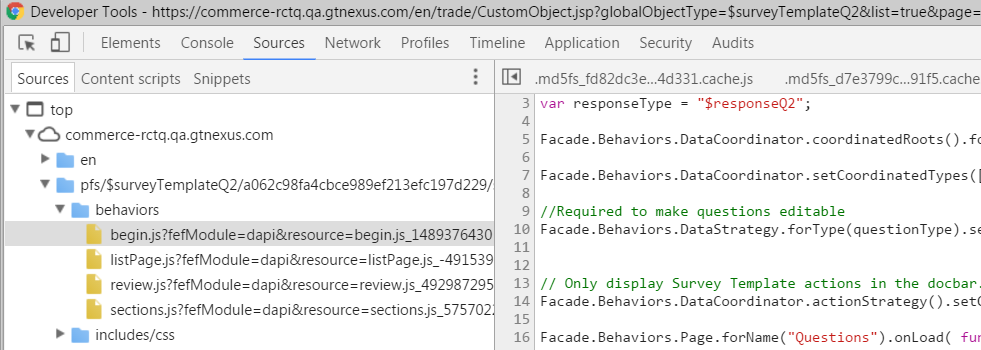
FEF Behavior Folder You can also debug FEF source code by adding the query parameter debug=true. This will tell the server that we are in debug mode, and to send the un-minified version of the FEF source code. It can be accessed in the location seen in the below screenshot
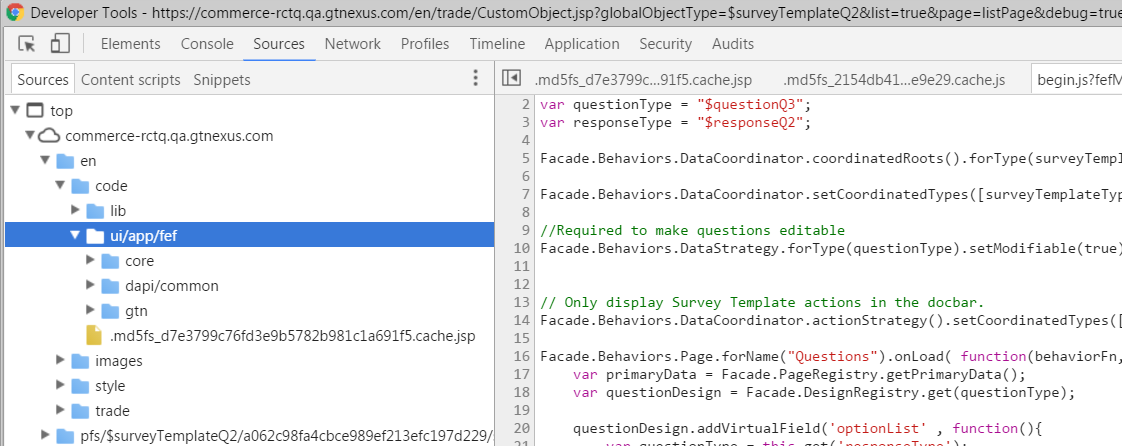
FEF Source Code Then, we can really dive into the FEF source to understand what is going on in our application
-
Find HELP
ASK! Send in all your questions here and you will receive an answer via email within a business day. Your questions can further help the learning curve of other AppX developers, as previously asked questions can be seen here